Connect to VPN
Palo Alto GlobalProtect VPN
UNT Dallas will be transitioning from the Cisco AnyConnect VPN service to the Palo Alto GlobalProtect.
The GlobalProtect client is being deployed to all Faculty and Staff laptops. This new VPN service ensures you can continue to securely access UNT Dallas network resources, like shared drives and internal systems, when working remotely, from home, or while traveling. The program is installed during the initial setup process for all new computers.
Connect the VPN
Windows
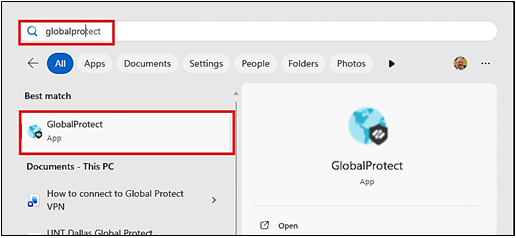
1. In the Search windows in your taskbar, type “GlobalProtect” to find and launch the app. Alternately, you can press the Windows key on your keyboard as a shortcut to the search field and type “GlobalProtect”.
Mac
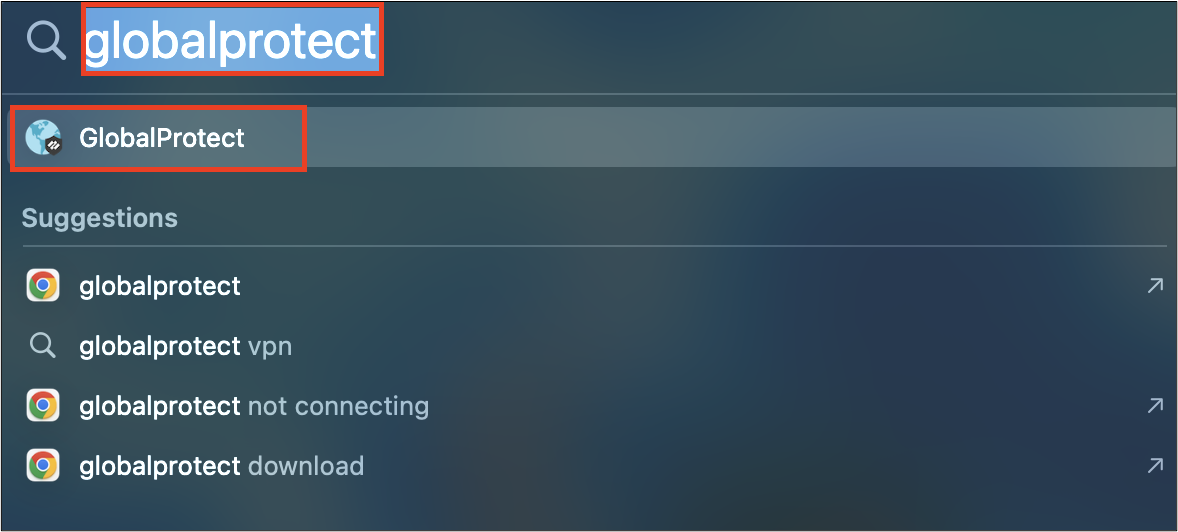
1.Click the Spotlight icon (magnifying glass) in the upper-right corner of your screen, type “GlobalProtect” to find and launch the app. Alternately press Command + Space and type 'GlobalProtect' to find and launch the app.
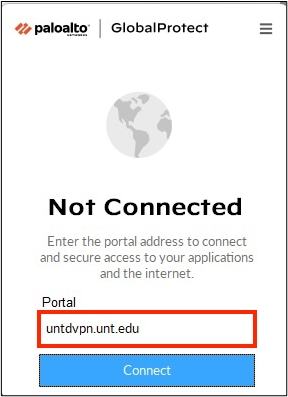
2. Type the UNT Dallas VPN server name "untdvpn.unt.edu" into the portal field and click the connect button.
3. Enter your UNTD EUID and password and click Connect. When prompted, approve the connection using your DUO MFA device (the DUO Mobile App is the default method). You may need to agree to the UNTD banner before the DUO prompt appears.
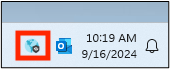
4. The VPN client will connect after MFA approval. The connected icon will appear
in the system tray: 
Disconnect the VPN
1. Click the GlobalProtect icon in the system tray:
Windows
Mac

If you encounter any issues or need further assistance, please contact the Office of Information Technology by emailing helpdesk@untdallas.edu, call 972-338-1448 or visit us in the Student Center Room 1022
The VPN client says "Connection failed" or "Invalid Credentials." What should I do?
1. Double-check your UNT EUID and password.
2. Verify that the Portal address is correct (untvpn.unt.edu).
Do I need to be connected to the VPN all the time?
The VPN is only needed to when accessing resources that specifically require it (Perceptive Content). For general internet browsing or public UNT services (Canvas, MyUNT, etc.), it is not required.
How do I know if the VPN is connected successfully?
You will see the green checkmark or connected icon in the system tray/menu bar
Will I still be able to use Cisco Anyconnect?
We are transitioning all faculty and staff to the GlobalProtect VPN. Please be advised that Cisco AnyConnect will be decommissioned on February 16, 2026. After this date, you must use GlobalProtect to access secure company resources.